Pick a topic
Click a card to jump to its video and step-by-step guide.
Logging In
Create your account or sign in. No purchase needed.
02 · VideoWatchFree Play & Free Trial
Two free ways in: Quick Play with no sign-up, or a full 7-day trial with just an email.
03 · 2 videosWatchSetting Up Your Bank
Your bank, your wallet, and moving money between them. Quick and full versions.
04 · VideoWatchBrowsing Our Games
Browser, desktop or mobile: where to play, and how to get the best experience.
05 · VideoWatchBuying a Game
Buy on our website and your games follow your email to every device.
06 · VideoSoonAdding Nexus Pro
Add the Pro tools to the games you own.
07 · VideoWatchHow to Get Support
Every way to reach a real person: tickets, email, phone and our weekly community call.
08 · VideoSoonFree vs Paid vs Pro
Compare the free games, paid games, and games with Nexus Pro.
Logging In
- You don't need to buy anything first. There is no requirement to own a game. You can create an account and log in at any time.
- Enter your email address in the Account Login field.
- Already have an account? You will be asked for a 4-digit verification code sent to your email.
- New here? Follow the on-screen instructions to create your account.
- Made a purchase? Use the same email you used when you bought. Want a different email? Create your account with the original email first, then contact [email protected] and ask us to change your primary email.
- Accept the terms. There are 3 documents. Open each one, scroll through it, read it, then close it. A checkmark appears to the left of each document once it is marked as read.
- Click Continue once all 3 documents have checkmarks. You only do this once, when you first create your account.
- Check your email for a 4-digit verification code from CQ Nexus.
- Enter the code in the verification field and click Continue. You are logged in.
Free Play & Free Trial
There are two free ways to play CQ Nexus. Quick Play has no strings attached: no email, no login and no credit card. The 7-Day Free Trial needs only an email, still no credit card, and unlocks everything.
- Open the game lobby. Go to games.cqnexus.com in your web browser. You do not need to sign in. When you are not logged in, every game shows a Free pill, because the system does not know who you are yet.
- Pick a game. Click any game to open its lobby. You will see two options.
- Option 1: Quick Play. This is the no-strings version we call Little Bird.
- Low limits: a $1 minimum and $3 maximum bet.
- A $100 virtual bankroll that you can refresh once a day. Come back tomorrow for more.
- Some features are limited, but you get the full feel of the game, and it is still a lot of fun.
- Option 2: the 7-Day Free Trial. The big trial button unlocks everything for 7 days: every feature, bankroll management, the risk profile, the BRIDGE tools and custom tables. A countdown shows how many days you have left. All it needs is your email.
- Check out the menu screen. The first time you enter a game, a menu screen opens to give you a heads up on the layout and controls. Some of those features, like Leaderboards, Rank, XP and Achievements, are not available in Quick Play. During the 7-Day Free Trial, everything is unlocked. Close the menu when you are ready to play.
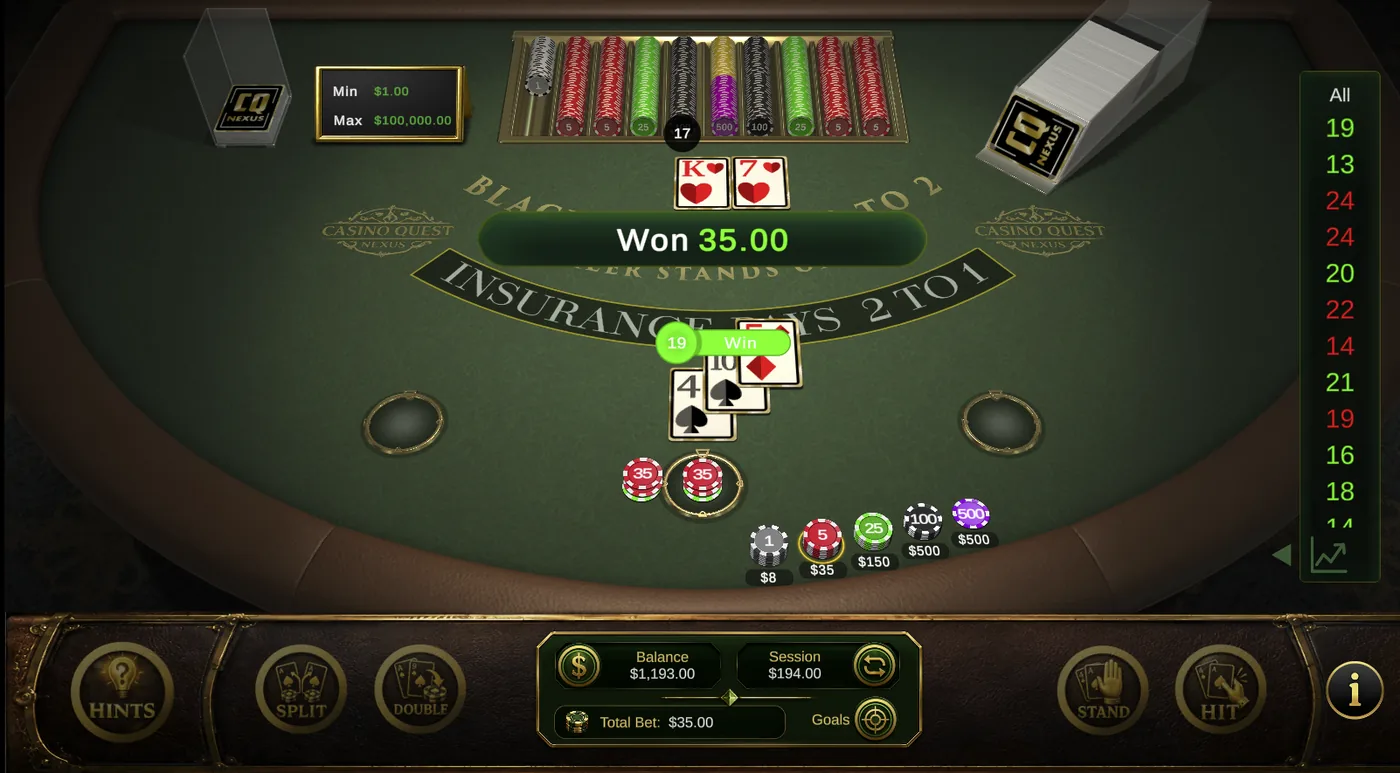
- Play. The whole game works, in the right order of play. In Quick Play the hints are always on: in Blackjack, click your hand for advice, open your basic strategy card, and the game will warn you before a risky move. (In the full version, hints are a setting you can turn on or off.)
- Out of chips? Scroll down and click Reset Wallet to get your $100 back (once a day). Your $100 also resets when you leave the game.
- Try another game. Open the Quick Links drop-down at the top center of the screen to jump straight to another game, such as Roulette, and choose Quick Play again. Same $1 to $3 limits.
- Ready for more? Return to the home page. Start your 7-Day Free Trial, or click Buy to go to the store and unlock the full game for good.
Setting Up Your Bank
Money management is the hardest part of casino play, and this is the tool for practicing it. Think of it like a real trip: your bank holds your bankroll, and your wallet is the walking money you bring to the table.
- Own a game and your wallet is funded. When you open a game you own, $1,000 is placed in your game wallet. Games you have not bought run in free mode with a $100 wallet at low limits. That $100 is only for the free versions, so you can ignore it.
- Find your bank. You can manage your bank and wallet from the lobby (both buttons go to the same place) or from inside any game. You do not need Nexus Pro.
- Meet your starting account. The Virtual Bank Account Manager creates one account for you called Nexus Games Bankroll.
- You start with a $10,000 net worth: $9,000 in the bank and $1,000 in your wallet.
- You are not limited to that amount. You can add as much as you like.
- Rename it. Give the account any name you want, such as "Master Account," and click Save.
- Add money to your bank. Add a transaction and choose Deposit. For example, deposit $25,000 to play like a high roller. Your net worth goes up, and your wallet stays the same.
- Reset any time. One button returns your bank to the original $10,000 whenever you want a fresh start.
- Fund your wallet before you play. Open the Quick Wallet (the same button is in the lobby and inside each game), choose Add to Game Bankroll, and use the slider. Add $500 and a $1,000 wallet becomes $1,500. Decide your buy-in before you sit down, just like a real trip.
- Take money off the table. In the Quick Wallet, slide money back to your bank to cash out. Leave only what you want to bring to the next table.
- Play. Inside the game your wallet is live. Your rack goes up and down as you win and lose, and the session panel tracks each round.
- Leave the table cleanly. Hit Clear before you leave so no bets are left behind (contract bets stay, as they would in a casino). Your balance stays in your wallet.
- Lock up your wins. Open the Quick Wallet, click Manage Accounts, and deposit your winnings back into your bank. Your wallet is back to the amount you planned to play with.
With Nexus Pro: you can open multiple bank accounts, for example one each for Craps, Roulette and Video Poker, and track the money in and out of every game separately.
Browsing Our Games
Everyone plays a little differently: on a desktop, a laptop, a phone or a tablet, in an app or right in a web browser. Here is how to get to the games on each one, and which setup gives you the best experience.
- Start on play.cqnexus.com. The home page shows the games that are live and what we are working on. Each game has its own page with an overview and a heads up on its features.
- Go to Downloads. When you are ready to play, open Downloads in the site menu. It is the only page you need, with every way to play in one place.
- Play in your browser. Click Play free in your browser to go straight to games.cqnexus.com. There are also direct links to each individual game.
- Play on your desktop. Scroll down for the desktop apps: Download for Mac or Download for Windows.
- Play on your phone. Scroll down further for the all-in-one games app on the Apple App Store and Google Play. You can also search the stores for Casino Games by Casino Quest, or for the developer name, CEI Limited.
- On an iPad? Use the mobile app. Do not use the browser or the Mac version on an iPad. The mobile app now detects your iPad and optimizes the screen for it. The browser version is not designed for iPads and gives the worst experience.
Buying a Game
When you buy a CQ Nexus game, it is yours forever: no tokens, no ads and no subscription required. Here is how buying works, start to finish.
- Buy on our website. You do not have to buy through the App Store or Google Play. Buy at play.cqnexus.com, then download the apps from the stores any time.
- Your purchase follows your email. Everything you buy is attached instantly to the email you use at checkout. When you log in to CQ Nexus with that same email, everything you own appears automatically. (See Logging In.)
- Find a Buy button. On games.cqnexus.com, Buy buttons appear in many places, including the free Little Bird games and your free trial. Each one takes you to our store.
- Choose a game or a bundle. Buy any single game, or scroll down for our bundled packages, offered at a discount. A comparison table shows every feature side by side. Tip: the store is easiest to compare on a desktop, where you can see everything at once.
- Consider a Las Vegas package. Our larger packages go beyond the software. Casino Quest is a real brick-and-mortar location in Las Vegas, with a lounge, more than 30 gaming tables and our sister business, CEG Dealer School. Packages can include practice with a dealer, strategy sessions with our team, family visits, and events for your company.
- Add Nexus Pro if you want it. When you view your cart, you can add Nexus Pro for 30 days or prepay for 90 or 365 days. It is optional. Your games are complete on their own, and Pro adds another layer: more bankroll management, multiplayer and more. See Go Pro for everything it includes.
- Check out your way. Pay with PayPal, Venmo, Apple Pay, Google Pay or a regular credit card.
Adding Nexus Pro
The step-by-step guide will appear here with the video.
How to Get Support
Support is not just for when something breaks. A gameplay question, something that looks wrong, a feature you wish you had, or a way you want to use the software that it does not cover yet: we want to hear all of it, and there are plenty of ways to reach us.
- Use the Support button in the games. On desktop or in your browser, the home screen has a Support button before you even open a game. You do not need to be logged in.
- Enter your email so we know who to follow up with.
- Choose a topic: General Help, Bug Report, Feature Request, Account Issue, Billing or Other.
- Describe what is going on and send it.
- Logged in? Support is right there too. Paid members who are logged in get a higher level of priority. Free players and trial users are always welcome to reach out as well.
- Know when to expect an answer. We usually reply within one business day, often much sooner during Casino Quest business hours. Give us a little extra time on weekends.
- Visit the Help Center. Many pages end with a support link, and there is one in the footer of every page. It takes you to our Help Center, with its own knowledge base, quick buttons for things like feature requests, and a form to submit a ticket.
- Email us. Write to [email protected] any time.
- Call a real person. Casino Quest is a brick-and-mortar business in Las Vegas, Nevada, with real people. Call +1 702 439 8836. We are a small team, so you may reach voicemail, but we will call you back. If typing is hard for you, this is a great option.
- Join our Monday community call. Every Monday at 4 PM Pacific on cqnexus.com, we show what we are working on and why, what was released and what was fixed, then open the floor. Jump in with feedback or questions in real time, or just listen.
- Check What's On. The What's On menu has News, our blog, Casino Quest After Dark every Thursday, plus the Roadmap, Current Builds and Developers Corner. You may find your answer there before you need to ask.
Free vs Paid vs Pro
The step-by-step guide will appear here with the video.
Keep exploring the Help Library. Questions any time: [email protected]
Tell us. We fix fast.
Every fix on this page came from a player who took the time to report it. If it isn't listed above, we probably don't know about it yet.